
Prateek Agrawal Nov 13, 2026 No Comments
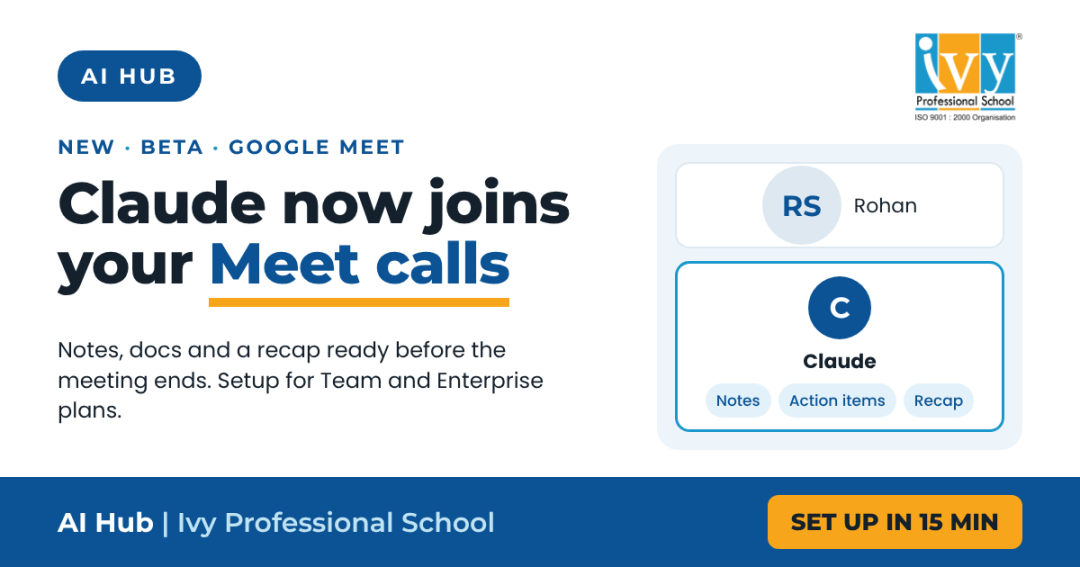
Anthropic has released Claude Meetings in beta. Claude joins your Google Meet call as a visible participant, follows the conversation and starts the work while people are still talking: a draft document, a timeline, a recap for the team.
This guide is for team leads, department heads and whoever holds the admin account for Claude in your organisation. It covers what an Owner has to switch on, what each member does, what to say to Claude during a call and where the output ends up.
It also covers the part most rollouts skip: deciding which meetings Claude should never be in.
Claude appears in the participant list and posts a notice with a link in the Meet chat. From then on, anyone on the call can speak to it by name or type to it in the chat. It replies in writing, and whatever it posts in the chat is visible to everyone.
After the call, the notes, summary, action items, transcript and any documents or whiteboards it made sit together on one meeting page. Invitees from your organisation get a recap email with the link.
| Requirement | What it means |
|---|---|
| Plan | Team or Enterprise only. Not available on Free, Pro or Max. |
| Excluded setups | Not available with zero data retention, HIPAA-ready configuration or customer-managed encryption keys. |
| Call platform | Google Meet only. Other platforms are planned but not available yet. |
| Admin access | Part 1 below needs an Owner or Primary Owner. On Enterprise, a custom role with Owner access also works. |
All four settings are on one page. Do them in this order.
Go to Organization settings, then Products, then Claude Meetings (beta), or open claude.ai/admin-settings/meetings. If the page does not open, your account is not an Owner. There is no way around this from a member account, so send this section to whoever holds Owner access.
Do this first. Until it is on, no member can connect a calendar and every member’s Meetings page stays empty. This is the most common reason a rollout seems not to work.
The options are off, on for selected roles, or on for everyone. Selected roles is available only on Enterprise, through custom roles.
These are policy decisions, not technical ones.
The defaults depend on your plan, so check which side you are starting from before you announce anything.
| Setting | Team default | Enterprise default |
|---|---|---|
| Claude Meetings | On | Off |
| External guests | On | Off |
On Team, an Owner switches off what is not wanted. On Enterprise, an Owner switches on what is wanted.
Every person does these steps once for themselves. An Owner cannot connect your calendar or set your auto-join for you.
claude.ai/meetings. If it is not in the sidebar, Part 1 is not done or your plan does not include it.Address it by name out loud, or type in the Meet chat.
| You say or type | What happens |
|---|---|
| “Claude, start a doc for this plan” | It writes up what has been said so far. Invitees can edit while the call continues. |
| “Claude, put the timeline on a whiteboard” | A whiteboard opens beside the doc and the team can move the schedule around live. |
| “Claude, what did last year’s event cost?” | It asks the speaker to approve use of their connected tools, then posts the figure in the chat. |
| “Claude, share a recap with the team” | The recap goes out before the meeting ends. |
| “Claude, stop listening” | It pauses. Resume it from the meeting page. |
| “Claude, you can leave” | It leaves the call. You can also click Remove Claude on the meeting page. |
Spoken requests take a moment longer because Claude confirms who is speaking each time. It stays for up to eight hours and warns you before it leaves.
Notes, summary, action items, transcript, documents and whiteboards from the call are all on one page. Invitees from your organisation can open it, edit what Claude made and share it inside the organisation. Claude saves the transcript, a summary and descriptions of what was shown on screen. It does not save audio.
Invitees from your organisation receive it with the link. External guests do not, even on calls they were allowed to join.
In an ordinary Claude chat you can ask about any meeting you had access to. The Meetings calendar also lists past and upcoming calls.
Notes, transcripts and in-call answers are included in Team and Enterprise plans. Documents, whiteboards and other artifacts made during a call are free until 10 February 2027. The one exception: when an answer uses one of your connected tools, that counts towards your plan’s usage.
| Function | A good first meeting to try | What to ask Claude for |
|---|---|---|
| Sales | Internal weekly pipeline review | A list of deals discussed, next step and owner for each |
| Operations | Daily or weekly production review | Issues raised, decisions taken and a timeline on a whiteboard |
| Finance | Month-end close or budget review | A draft summary of variances discussed and open questions |
| HR and L&D | Training calendar or policy planning meeting | A draft plan doc the team edits during the call |
| Leadership | Monthly business review | Decisions, owners and dates, shared as a recap before the call ends |
Start with recurring internal meetings where the output is a plan or a list of actions. Keep it out of interviews, appraisals, disciplinary discussions and client negotiations until you have a written policy.
| Problem | Cause and fix |
|---|---|
| Meetings is not in my sidebar | Your organisation has not switched it on (Part 1), your plan does not include it, or you are on an excluded configuration. |
| Calendar connected but the list is empty | The organisation-level Google Calendar switch is off. Only an Owner can turn it on (Part 1, Step 2). |
| Claude would not join a call with a client | Working as intended. It stays out of calls with external guests unless an Owner allows them. |
| It left halfway through | Someone from outside the organisation joined and external guests are not allowed. |
| It would not look something up | It needs your permission to use your connected tools. It asks the first time. If an Owner has disallowed members’ connectors in meetings, it cannot ask at all. |
Interviews, appraisals, client negotiations and legal discussions are transcribed the moment Claude joins. Write the exclusion list before someone finds out by accident.
Notes and transcript sit on a page that anyone on the invite can open and pass on inside the organisation. That is a new internal channel for candid conversation, and people should know it exists.
If the document is being written while you talk, the meeting’s job shifts from recording decisions to making them. Teams that do not rework their agenda get the same meeting plus a transcript.
Not yet. During the beta it works only with Google Meet. Anthropic has said other platforms will follow.
No. It is available only on Team and Enterprise plans.
No. It saves a transcript, a summary and descriptions of what was shown on screen, but not audio.
External guests get no meeting page and no recap email. If an Owner allows guests, their words still go into the transcript, so tell clients before Claude joins.
The setup is the easy part: one Owner, four settings and a calendar connection per person. The real work is deciding which meetings Claude belongs in and changing how those meetings are run. Pilot it on two or three recurring internal reviews, check the output for a few weeks, then widen it.
Ivy Professional School has trained data and AI teams since 2008. We run hands-on enterprise programmes on Claude, Copilot and AI-powered reporting for business functions.

Prateek Agrawal is the founder and director of Ivy Professional School. He is ranked among the top 20 analytics and data science academicians in India. With over 16 years of experience in consulting and analytics, Prateek has advised more than 50 leading companies worldwide and taught over 7,000 students from top universities like IIT Kharagpur, IIM Kolkata, IIT Delhi, and others.